01Donation Alerts for OBS: Test Mode
The new donation notification overlay—an alert that viewers see the moment they make a donation—is currently in beta. It’s available by request only: contact support through your account dashboard, and we’ll enable it for your channel. (Available only to Premium / Ultra users)
While the overlay is in beta, its features and settings are subject to change. If something isn’t working as expected, please let support know—this will help us roll it out to everyone faster.
02Donation Goal: Donation Badge and 4 Small Collection Styles
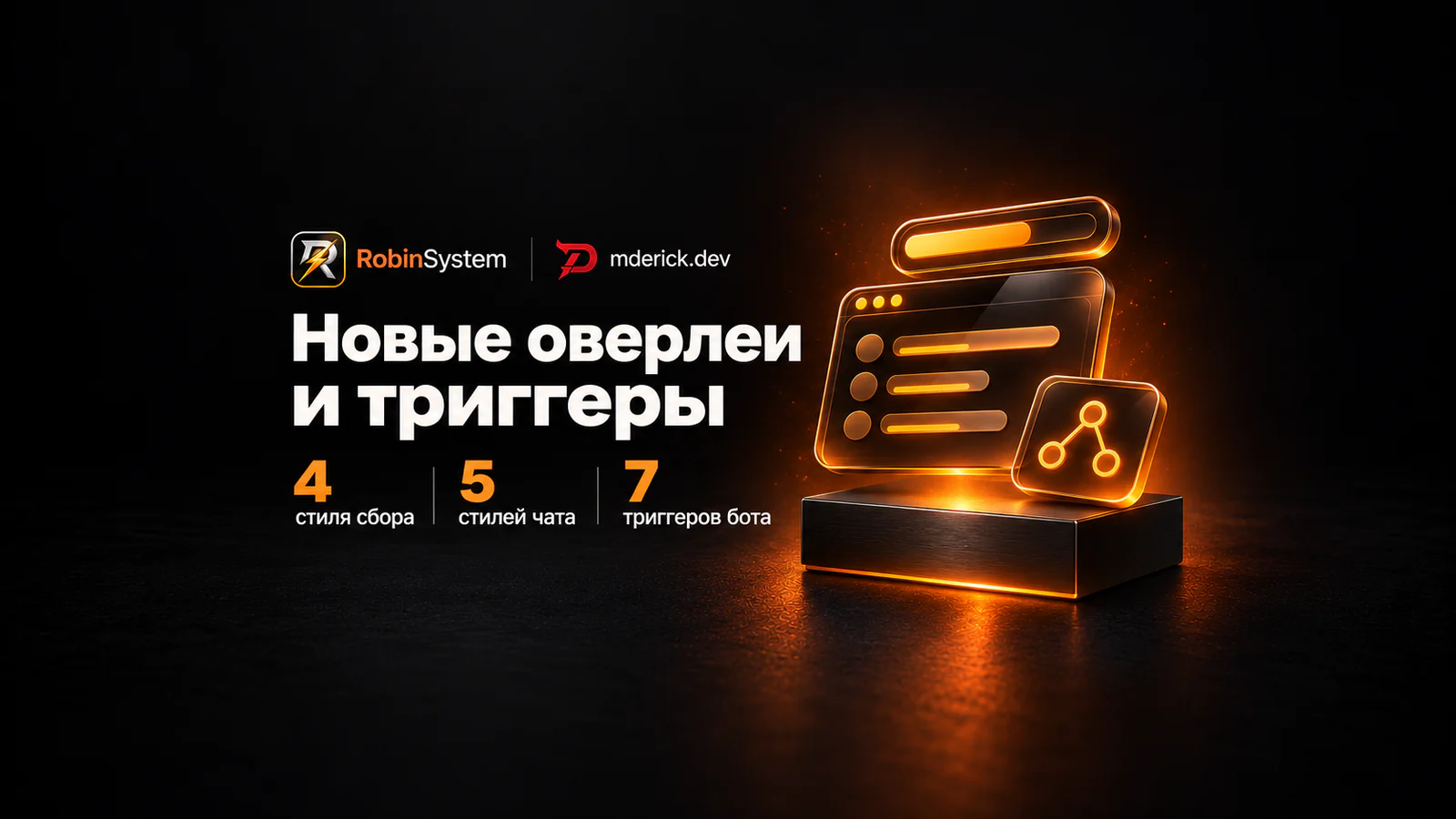
Collecting donations during a stream no longer covers the screen when a donation comes in. A compact “+amount · username” badge appears next to the scale—as a capsule, a glass, or just text. It automatically positions itself on an empty side, and consecutive donations stack up to three at a time.
In the “View” tab, you can customize the position, size, color, animation, display time, and username.
Small styles for the screen edge
- Thread (Free)—just text and a thin line for the top edge above the game. When a donation is made, a glowing bead moves toward the new amount, and “+500 ₽” pops up below it.
- Counter (Free) — a capsule where the amount takes center stage: the digits scroll like on a mechanical counter.
- Fill (Premium) — no progress bar: the goal’s name itself indicates progress, with the letters filling with color from left to right.
- Island (Ultra) — a black capsule with a ring and a percentage. When a donation is made, it expands, displays “+500 ₽ · username,” and then collapses back.
One collection tracks donations simultaneously from DonationAlerts, DonatePay, and DonateX. For step-by-step instructions on how to set up a donation goal for OBS, see separate guide.
03DonatePay and DonationAlerts: Donations Without Delays
- DonatePay is now real-time. Previously, the bot polled DonatePay on a schedule and hit their request limit: some donations were delayed or didn’t go through. Now donations arrive via the DonatePay event stream—immediately after they’re sent.
- An incorrect DonatePay key is visible in your account: instead of silence, you’ll see a prompt to replace the key.
- The DonatePay test donation is working again.
- DonationAlerts no longer crashes under heavy load: we fixed the bug that prevented donations from going through for some streamers.
04Twitch Chat Overlay for OBS: 5 New Styles
The OBS chat can now be displayed in more ways than just a sidebar.
- Subtitles (Premium) — just like in the movies: only the last two lines appear at the bottom center, in large, outlined text.
- Ticker (Premium) — a single chat stream, like a news ticker at the bottom of the screen. The speed is constant: messages don’t rush by—they wait in line when there’s spam.
- Pop-ups (Premium)—messages appear like notifications on a phone: no more than four at a time, each lasting 8 seconds.
- Messenger (Ultra) — a chat like a text conversation: messages from a single viewer are grouped together in sequence, and the streamer types on the right.
- Pulse (Ultra) — a label next to each message shows how lively the chat was: turquoise means calm, yellow means lively, and red means heated.
The short chat in “Centered Widget” mode is now centered, and previews of all overlays in the dashboard are displayed on a single background—making it easier to compare styles.
05Auto-Messages in Chat: A/B Testing
Not sure how to write a reminder about Telegram or followers to get a response in the chat? Now, both auto-messages and triggers can have multiple text options:
| Plan | Options |
|---|---|
| Free | 2 |
| Premium | 4 |
| Ultra | 10 |
The bot cycles through the variants in order or randomly, with each having its own style: a regular message, /me, or an announcement. For auto-messages, you can see how many messages and viewers were in the chat within 3 minutes after each variant—so you can immediately tell which text works best.
06New Chatbot Triggers for Twitch
Seven new events that the bot responds to in chat:
- Bits — custom text for different amounts: the bot triggers the highest threshold reached.
- Bundle of gift subs — also with thresholds: one message for 5 subs, another for 50.
- Subscription renewal — messages by month: exactly 12 months, every 6 months, starting at 24 months.
- Game or Name Change — the bot will announce what’s currently on air.
- Viewer Return — a greeting for someone who hasn’t posted in the chat in a while, once per stream.
- Hype Train — the start, a new level, and the end of the train.
- Poll or prediction results — the bot will announce the winning option.
Plus, “Stream Start → Telegram” (Premium): when you go live, the bot automatically sends messages to subscribers in their private chats and linked groups. General variables work in trigger texts—$channel, $game, $title, $uptime, $random, and others.
07The bot notifies you if something didn’t work
Previously, the bot would simply remain silent—and it wasn’t clear why. Now, a notification will appear in your dashboard’s bell icon with the reason and a link to the relevant section if:
- the text of a command, timer, or trigger contains a prohibited word (it’s hidden with asterisks in the notification);
- Twitch didn’t accept the bot’s message: timeout, slow mode, “followers-only” mode, or AutoMod;
- the voice message was ready, but the TTS overlay isn’t open in OBS;
- Spotify stopped playing the current track.
You’ll receive no more than one notification per day for each reason.
Type /mod and the bot’s nickname in your channel’s chat. A Twitch moderator has a higher message limit, and slow mode and “followers-only” mode do not affect them—this eliminates most failures.
08Raid Analytics and the Moderator Team
Two new tabs have appeared in “Analytics”:
- Raids — who raided your channel and when (Free). With Premium, you can see how many raiders remain, who posted in chat, who followed, and who returned; with Ultra, you can see who raids most often.
- Team — channel moderators and VIPs along with their activity (Free) and a log of moderator actions: bans, timeouts, and deleted messages (Premium).
In “Ranks” → “Viewers,” a new column called “Gave a Subscription” has been added: the top subscription donors of all time and for a specific period, visible in the viewer’s profile and in the CSV export.
09FACEIT Widget for OBS and Updated FACEIT Section
The FACEIT section in the dashboard has been redesigned to match the overall dashboard style. The “Overview” tab opens first: ELO and progress toward the next level, daily change, K/D, win rate, and form for the last 20 matches, as well as a map of the current match. You can also see there whether any widgets are currently open in OBS.
How to add a FACEIT widget with ELO and CS2 stats to your stream—step-by-step, in 4 steps—on the widget page. Basic styles are free.
10The Affiliate Program Is Open to Everyone
Applications are no longer required: accept the terms in the “Referral Program” — and you’ll receive your link immediately. You can change the link address; the old one will continue to work. In this section, you can see clicks, monthly earnings, and the dates when payments will become available. For details, see the program rules.
11“Hot and Cold”: 1,849 Riddles
This chat game, in which players guess a word based on its meaning, has more than doubled in size: 1,849 riddles instead of 756. New themes: The Body, Insects, Beverages, Movies and Theater, Science, the Middle Ages, the Army, the Store, the Office, the Farm, and Art; existing themes have been expanded. Ambiguous words like “bow” or “braid” were manually removed. The game is available on Ultra; for more details, see the game page.
12Fixes
- TTS voice: If the selected voice has been removed from Fish Audio or ElevenLabs, the bot will automatically switch to a backup voice, and the voice output will not stop.
- Bot Restart: Triggers for starting a stream and pinning a post no longer fire repeatedly, and a live stream is no longer split into two in the analytics.
- Word filter: The bot is less likely to mistakenly block common words in its responses.
- Site language: The selected language (Russian or English) is saved for one year and is not reset when logging in via Twitch.
- FACEIT widget: Removing the widget while it’s open in OBS no longer causes an error.
What to Do After the Update
- Don’t change any settings
Old overlays, alerts, and triggers work as before.
- Check your DonatePay key
If a request to replace the key appears in your account—enter the new one from your DonatePay account.
- Change the site language once
If you selected a language before the update, that selection will be saved.
- Grant moderator privileges to the bot
This prevents the bot from hitting Twitch limits and chat modes.
Frequently Asked Questions
Do I need to reinstall anything in OBS?
No. The links to the overlays remain the same; simply select the new style in your account settings. If the source in OBS hasn’t updated, click “Refresh” next to it.
What new styles are available for free?
The “Thread” and “Counter” styles, as well as two text options for auto-messages and triggers. Donation alerts are currently in beta and are provided upon request to support.
Why didn’t the bot respond to a command?
Now, the reason is sent as a notification to your dashboard: a prohibited word in the text, a Twitch rejection, or chat mode. Most often, granting the bot moderator privileges helps.
DonatePay donations used to be delayed—has this been fixed?
Yes. DonatePay donations now arrive immediately via the event stream, without scheduled polling.
Questions and ideas—please contact support via your account or our Telegram channel.